How to customize your store
In this article:
Watch: How to customize your store 🎥
Watch: How to customize your store 🎥
📌 Sellfy's Store Customizer
Use the Store Customizer to create a unique look and feel for your Sellfy store. We recommend adding products before customizing your store so you can see what your store looks like with your products.
Choose a store theme
Every new Sellfy store starts with the Bio theme by default, but you can switch to a different one anytime using the Store Customizer.
To change a store theme:
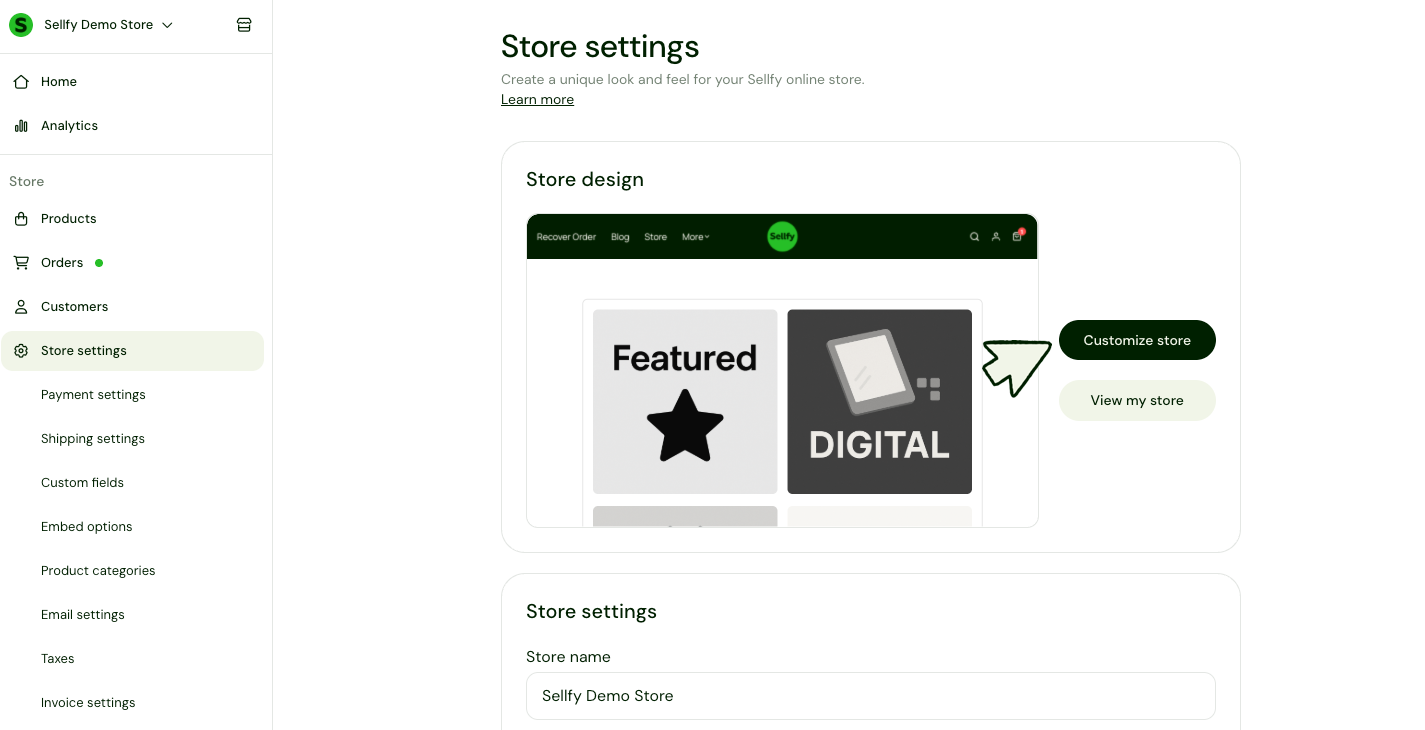
1. In the sidebar, click Store settings > Customize store.
What you see now is the Store Customizer.
2. In the Store Customizer sidebar, click Store Style.
3. Click Browse themes.
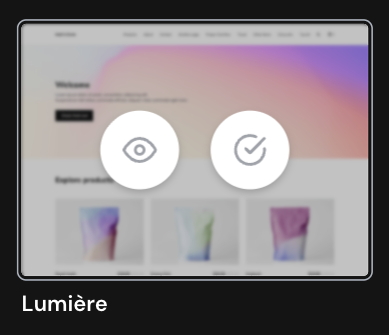
4. Hover the cursor over a preferred theme:
- Click the eye icon to preview the theme
- Click the checkmark icon to apply the theme.
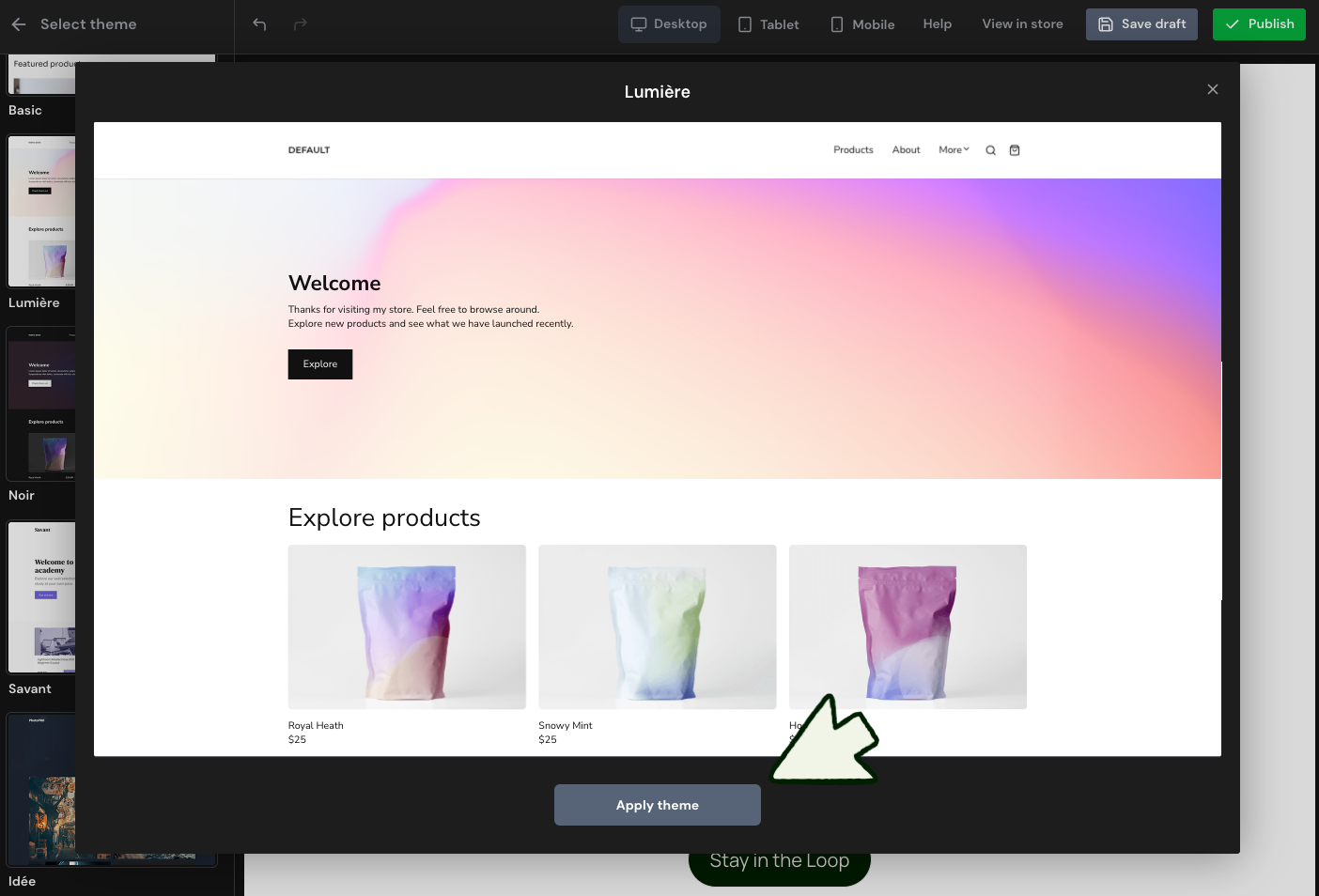
5. Click Apply theme.
Use the theme as is or continue customizing the store.
6. Click Publish to make your new store go live.
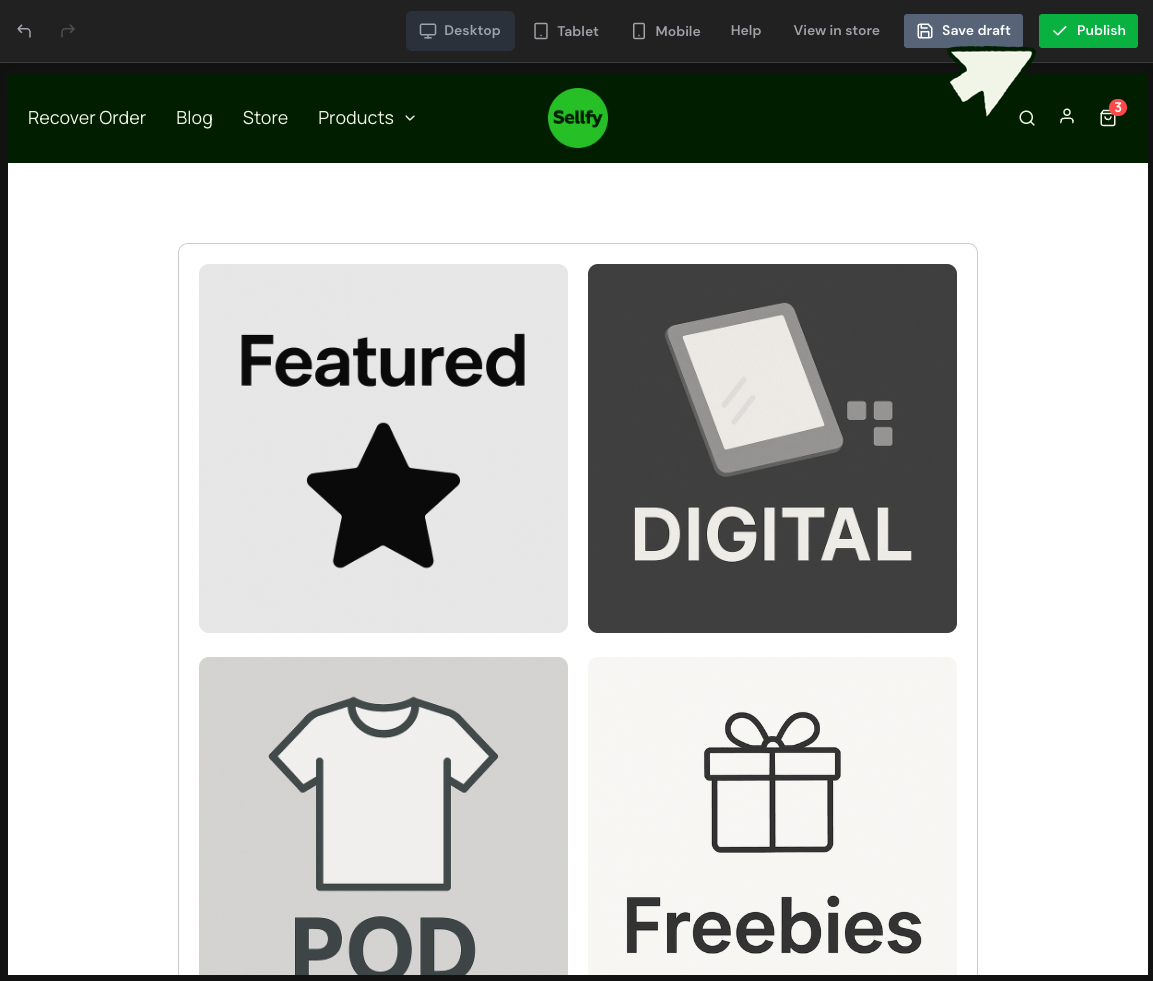
💡Note: If you applied a theme but didn’t publish, just click the back arrow in the Customizer to return to your old settings.
Customize your store
Once you've chosen a preferred store theme, you can continue customizing the store to your liking.
1. In the Store Customizer, select among built-in or custom pages.
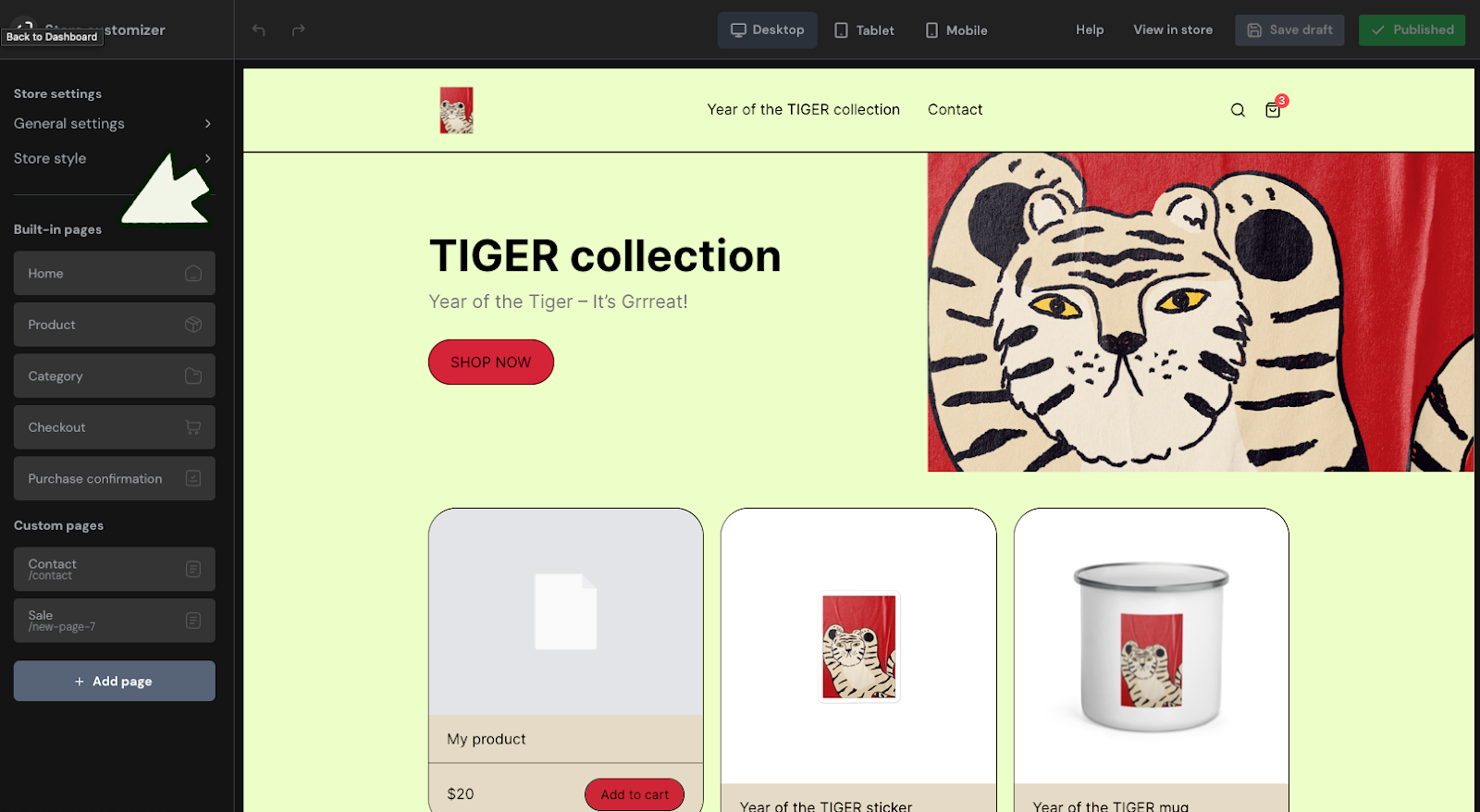
2. Click the page you'd like to customize.
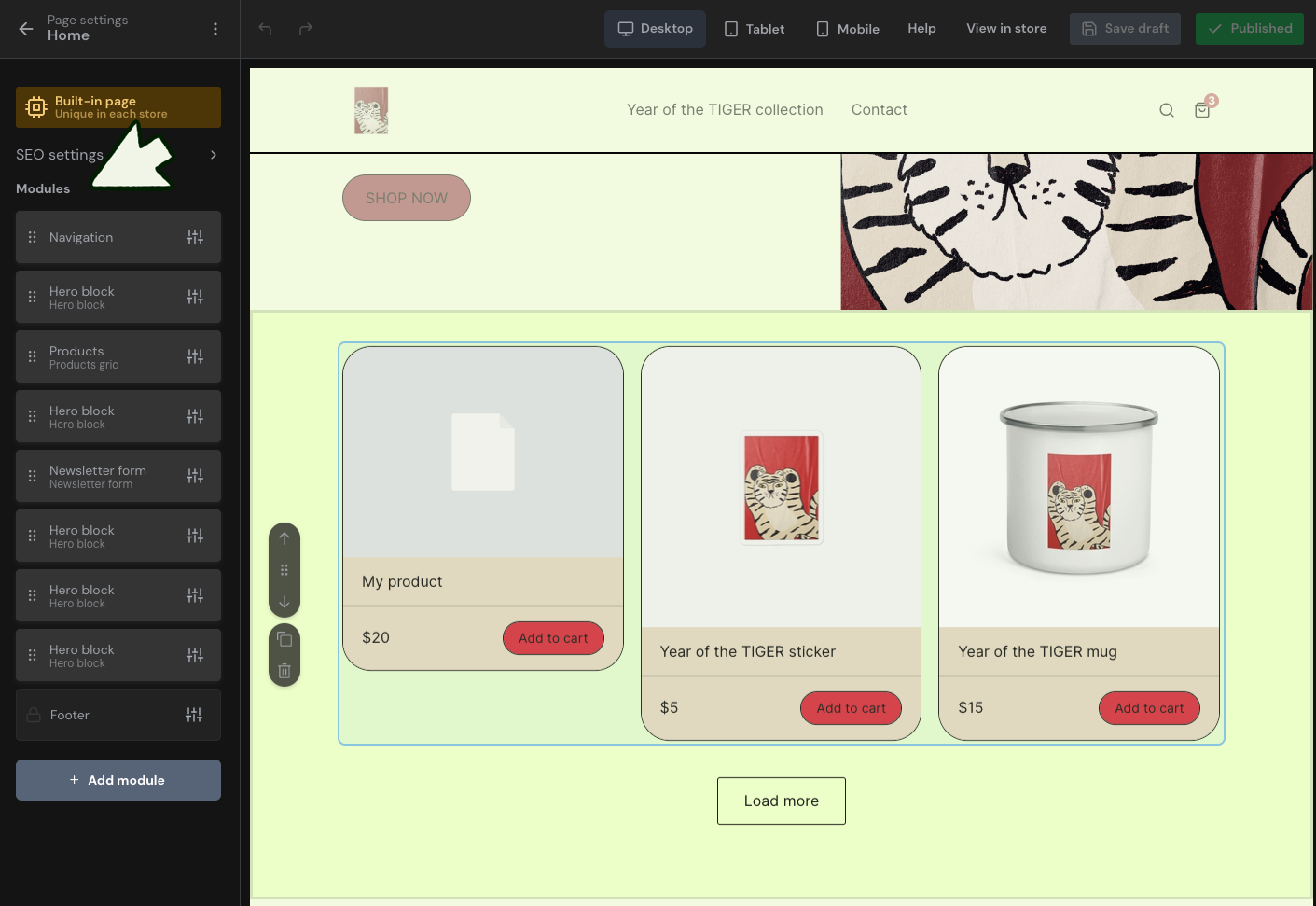
3. In the left sidebar, select a module you'd like to edit, or click Add module to create a new one.
4. Click the back arrow in the top-left corner to return to the Store Customizer, where you can select other pages to customize.
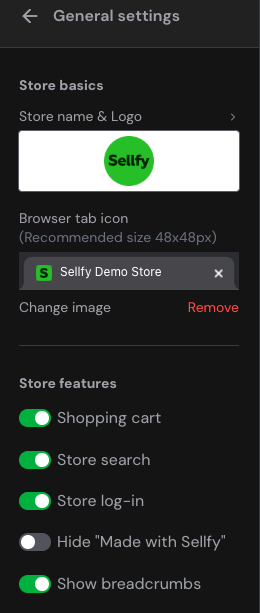
5. Go to the General settings section to change the store logo and adjust basic settings like store login, search, shopping cart, Sellfy branding, and more.
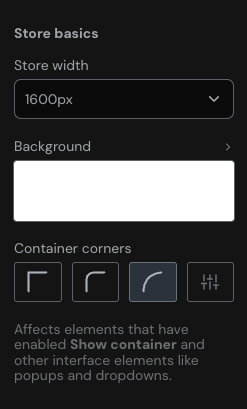
6. Go to the Store style section of the Store Customizer to adjust:
- Store basics
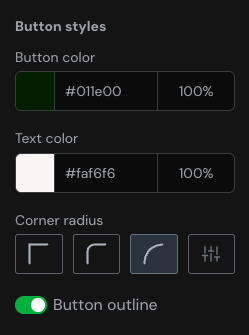
- Button design
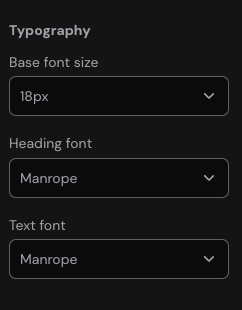
- Typograhy
7. In the top right corner, click Save draft or Publish.