Using Stripe for checkout
In this article:
Stripe checkout
Important! Sellers located in India can sell domestically in INR or internationally in USD, but not both simultaneously. For more details on using Stripe in India, read here and here.
Stripe allows you to easily collect payments from customers with:
- Credit card
- Debit card
- Apple Pay
- Google Pay
Before you get started, you'll need to create an account on Stripe. Once you've done that, you can connect your Stripe account!
How to connect Stripe
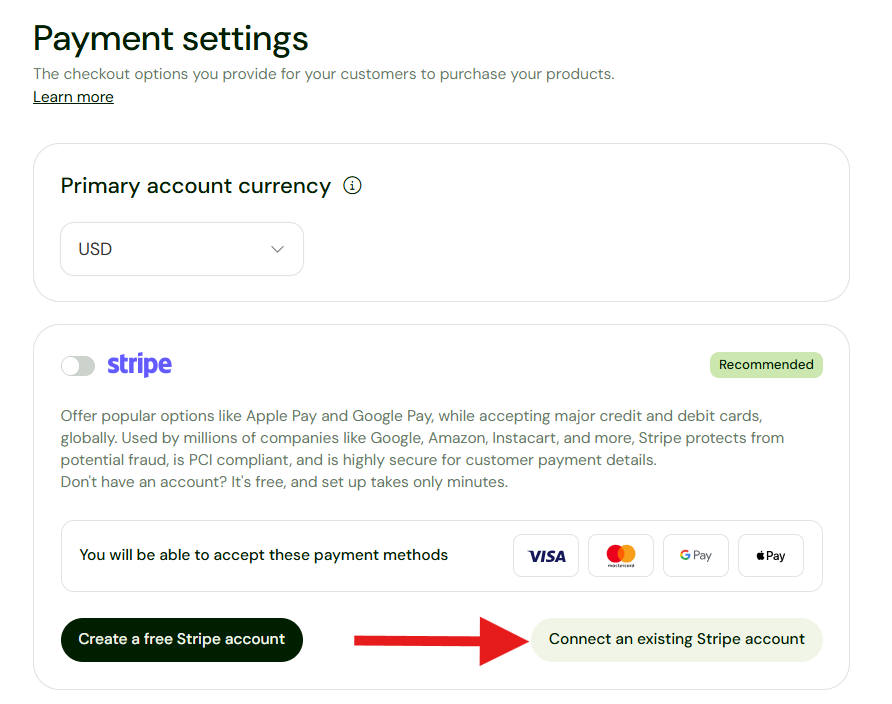
- Navigate to Payment Settings
-
Click 'Connect an existing Stripe account' (If you don't have a Stripe account, click 'Create a free Stripe account' to sign up.)
- If you are not yet logged in to your Stripe account, enter your registered email address.
- Click Authorize access to this account.
- You will be redirected to Sellfy payment settings.
-
The green switch to the far right of the Stripe logo indicates a successful gateway connection.
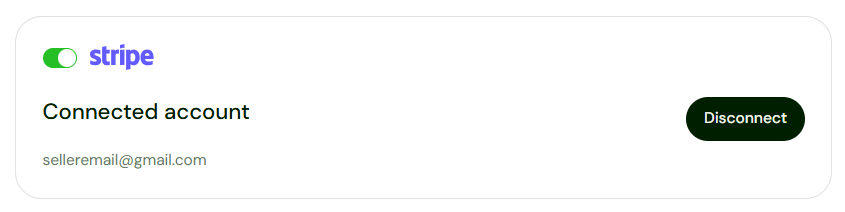
You're all set up to receive payments via Stripe!
Apple Pay
Any customer using an iPhone or Mac can opt for fast one-click checkout using Apple Pay.
To ensure Apple Pay appears as a payment option at checkout, your customers must be using Safari on iOS 10 or macOS Sierra and above.
Apple Pay Error
If customers have not yet entered an address for Apple Pay, they will see an error when trying to use it. They'll be prompted to add one at the bottom of the screen. This will resolve the error. See an example below.

Unfortunately, this error happens even if the purchase is digital and doesn't need to be shipped.
Stripe Radar
If you have concerns about fraudulent purchases, you may be interested in additional protection such as Stripe Radar.
💡Learn about other methods of protection Sellfy offers here.
Stripe Radar is a fraud prevention tool built directly into Stripe that uses machine learning to detect and block fraudulent transactions in real-time. By analyzing data across Stripe's global network, Radar automatically scores every transaction's risk level to protect your business from chargebacks.
Please know it's not required and does cost an additional amount.
If you are on Stripe's standard pay-as-you-go pricing plan this protection is included for free. For businesses on custom pricing, it typically costs 5¢ per screened transaction. Stripe also offers an upgraded tier called Radar for Fraud Teams, which costs 7¢ per screened transaction (or 2¢ if you are on standard pricing) and unlocks advanced features like the ability to write custom fraud rules, manage blocklists, and manually review suspicious payments.
FAQ
Q: Are there fees on sales?
A: There are no fees charged by Sellfy, just the monthly or yearly payment for your plan. However, Stripe does charge a processing fee on each transaction. On average, this cost is 2.9% + 30¢ per transaction. Read more about Stripe fees here.
Q: Do you support Stripe's supported services like Alipay?
A: As of now, we do not support the additional services that Stripe offers.
Q: When do I get paid?
A: You'll get paid nearly instantly. Your money will be deposited directly into your connected Stripe account right after the customer completes their purchase.
Q: Why do I need to connect Stripe if PayPal already offers credit card payments?
A: For customers residing in countries where PayPal isn't offered, Stripe allows them to smoothly check out using a credit card, debit card, or Apple Pay.
Q: Do I need a registered business to use Stripe?
A: No, you don't need a registered business entity (like an LLC or Corporation) to use Stripe.
Q: Can I use Stripe to sell subscription products?
A: Yes! Stripe fully supports recurring payments, allowing you to easily sell subscription products and memberships through your Sellfy store.
Q: Why isn't Apple Pay showing up at checkout for my customers?
A: Apple Pay will only appear for customers who are using Safari on iOS 10 or macOS Sierra (and above).
Q: Can I process refunds through Sellfy if they paid via Stripe?
A: Sellfy does not process transactions or refunds directly. To refund a customer who paid via Stripe, you will need to log into your Stripe Dashboard, locate the transaction, and issue the refund from there.